
Are you new to WordPress?
Wondering what WordPress widgets are, and how you can use them to improve your blog?
Widgets offer an easy way for you to customize your blog’s appearance and functionality, without having to know how to code.
In this article, we’ll introduce you to widgets, and show you how to add and configure them on your blog.
We’ll also recommend some of our favorite WordPress widgets for bloggers.
Let’s get started!
What Are Widgets and What Do They Do?
Widgets are small tools or pieces of code that add functionality to a WordPress site.
There are widgets for just about everything, from adding social media links to displaying the latest news headlines.
While some WordPress themes come with pre-installed widgets, others allow you to add or remove widgets as needed.
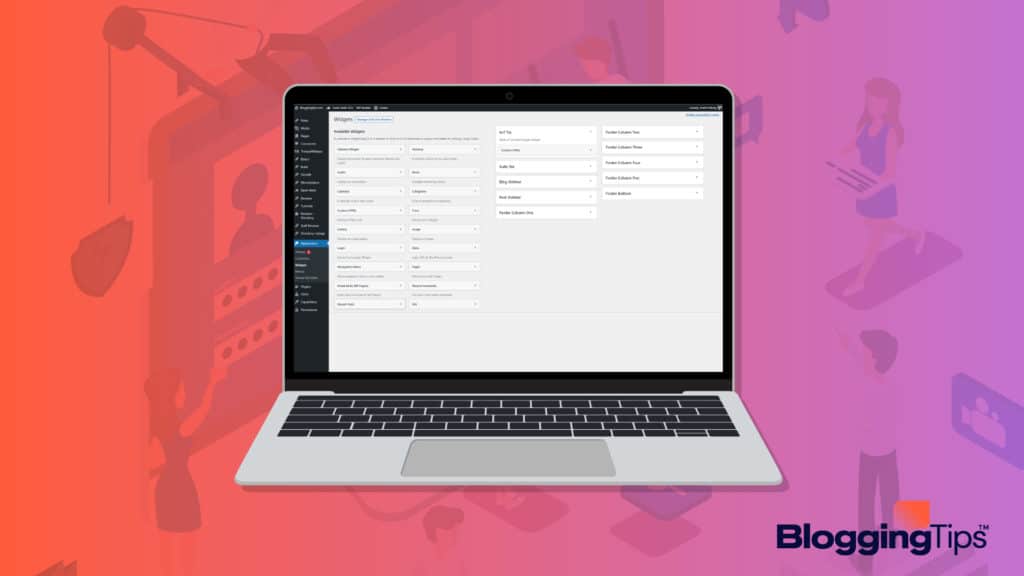
In most cases, widgets can be added simply by dragging and dropping them into the desired location on your WordPress site.
What Are WordPress Widgets Used For?
A WordPress widget can be used to display information, engage with visitors, or even help you generate
more traffic and subscribers.
For example, a social media widget can help you grow your social media following, while a contact form widget can make it easy for visitors to get in touch with you.
Readable: How To Write A Blog Post
However, if you’re not sure how to add or remove widgets, there are plenty of online tutorials that can help you get started.
Generally speaking, widgets are an easy way to add extra features to your WordPress site without having to edit any code.
So whether you’re looking to add social media links, display the latest news headlines, or just want an easy way to change up the look of your site, widgets are a great option.
The Different Types of Widgets Available
There are literally hundreds of different widgets available for WordPress.
And new ones are being created all the time.
This means that no matter what type of functionality you’re looking to add to your site, there’s likely a widget that can help you do it.
Some of the most popular widgets include:
1. Social Media Widgets
Social media widgets are tools that allow users to interact with social media content on websites other than the social media platform itself.
For example, a Twitter widget might allow a user to Tweet directly from a blog post or see how many people have shared the post on Twitter.
Social media widgets provide an easy way for users to engage with social media content, and they can be a valuable tool for driving traffic to a website.
However, it is important to use social media widgets sparingly and only in places where they will be most effective.
Otherwise, they can become a distraction and deter users from engaging with the content on your website.
2. News Headline Widgets
As anyone who spends any time online knows, news headlines are everywhere.
They appear on websites, in social media feeds, and in email inboxes.
And while they can be a useful way to stay up-to-date on current events, they can also be overwhelming and even intrusive.
One way to deal with the onslaught of news headlines is to use a news headline widget.
These handy little tools allow you to customize the news headlines that you see, so that you only see the ones that are most relevant to you.
You can choose to see headlines from your favorite news sources, or from specific topics that you’re interested in.
And you can often control how often the headlines are updated so that you’re not bombarded with too much information at once.
Also related: How To Monetize A Blog In 2022
3. Weather Widgets
Another type of widget that can be useful is a weather widget.
These allow you to see the current weather conditions for a specific location, as well as the forecast for the coming days.
This can be helpful if you’re planning a trip or if you just want to know what the weather is going to be like in your area.
4. Image Widgets
An image widget is a tool that allows you to display images on your website.
This can be useful if you want to showcase photos from a recent event or if you just want to add some visual interest to your site.
5. Calendar Widgets
A calendar widget is a tool that allows you to display a calendar on your WordPress website.
This can be helpful if you want to keep track of upcoming events or if you just want to add some visual interest to your site.
6. Maps Widgets
A map widget is a tool that allows you to display a map on your website.
This can be helpful if you want to show visitors where your business is located or if you just want to add some visual interest to your site.
Useful blog: 7+ Free Tools to Help You Increase Website Traffic Exponentially
How to Add a Widget to Your WordPress Site
If you’re using WordPress, chances are you want to be able to customize your site to suit your needs.
One way to do this is by adding widgets.
Widgets are small pieces of code that can be added to your site to perform a specific function.
For example, some widgets display your latest tweets or show a calendar of upcoming events.
Adding a widget to your WordPress site is easy.
Follow the tips below.
Step 1: Log In To Your WordPress Dashboard:
The first thing you need to do is log in to your WordPress dashboard.
This is where you’ll be able to access and edit all the settings for your WordPress site.
Once you’re logged in, navigate to the widgets page.
This can be found by hovering over the appearance tab in the left-hand sidebar and then selecting widgets.
Step 3: Choose The Widget You Want To Add:
On the widgets page, you’ll see a list of all the available widgets.
Scroll through this list and choose the widget you want to add to your site.
Step 4: Drag And Drop The Widget Into The Desired Location:
Once you’ve found the widget you want to add, simply drag and drop it into the desired location on your site.
For example, if you want to add a calendar widget, you would drag and drop it into the sidebar.
Step 5: Configure The Widget’s Settings (If Needed):
Some widgets will have additional settings that you can configure.
For example, you may be able to specify the number of tweets that are displayed or choose which events are shown on the calendar.
To access these settings, simply click on the widget and then make any changes that you want.
And that’s it! You’ve now successfully added a widget to your WordPress site.
If you are new blogger the read the blog post “What Is A Blog? Definition, Types of Blogs, Examples & More”
How To Configure A Widget’s Settings
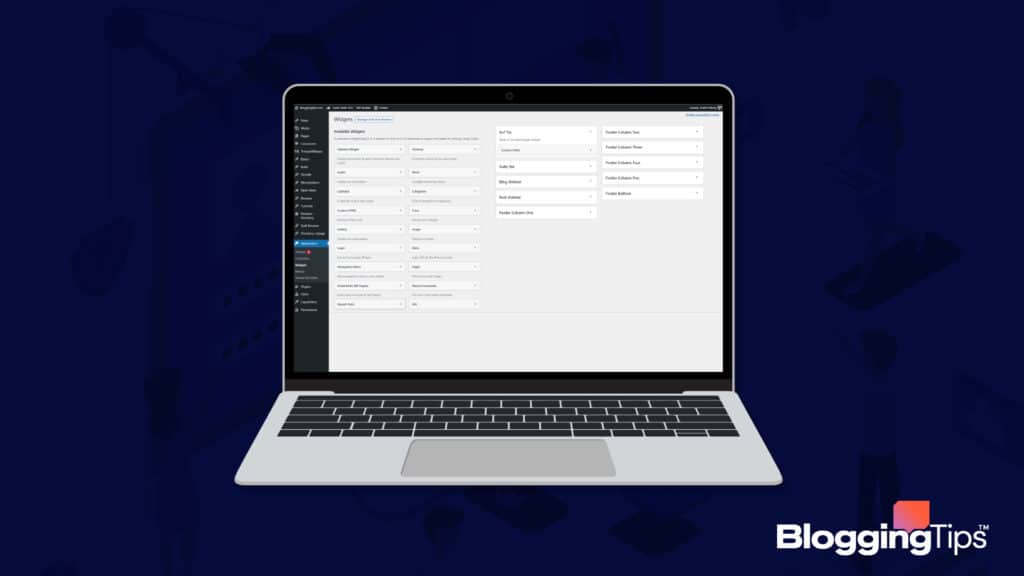
Most widgets will have some sort of settings that you can configure.
For example, you may be able to specify the number of tweets that are displayed or choose which events are shown on the calendar.
To access these settings, simply click on the widget and then make any changes that you want.
Keep in mind that not all widgets will have settings that you can configure.
And even if a widget does have settings, they may be limited.
So if you’re looking for a widget with specific features, it’s best to do some research beforehand to make sure that the widget you’re interested in has the options that you need.
How To Use WordPress Widgets
As the name suggests, free widget plugins are WordPress plugins that are available for free.
These plugins provide a simple way to add static content to your WordPress site without having to edit your theme’s code.
When it comes to adding widgets to your WordPress site, there are two methods you can use.
The first method is to use the WordPress Customizer.
The second method is to use the WordPress dashboard.
Using The WordPress Customizer
The WordPress Customizer is the recommended way to add widgets to your WordPress site.
This is because it allows you to preview your changes before you publish them.
To use the WordPress Customizer, you need to first log in to your WordPress website.
Then, go to the Appearance section and click on the Customize link.
Next, you need to click on the Widgets tab.
Here, you will see a list of all the available widgets.
You can drag and drop these widgets into the widget areas on your website.
Using The WordPress Dashboard
If you want to use the WordPress dashboard to add widgets to your WordPress site, you need to first log in to your WordPress website.
Then, go to the Appearance section and click on the Widgets link.
Next, you need to drag and drop the widgets you want to add into the widget areas on your website
Tips For Using Widgets Effectively On Your WordPress Site
Widgets can be a great way to add functionality to your WordPress site.
But it’s important to use them wisely.
Here are a few tips to help you get the most out of widgets on your website.
1. Only Use Relevant Widgets
It is important to only use relevant widgets on your website.
Relevant widgets are those that pertain to the specific topic of your website, and that is likely to be of interest to your visitors.
Adding too many irrelevant widgets can actually deter visitors from returning to your site, as it can appear cluttered and confusing.
Furthermore, unnecessary widgets can slow down the loading time of your pages, which can also frustrate visitors.
So how can you determine which widgets are relevant to your site?
First, take a look at the content of your site and determine what topics are most commonly addressed.
Then, research popular widgets that relate to those topics.
Finally, add a few select widgets to your pages and monitor their performance; if they’re not generating clicks or providing valuable information, remove them.
By following these steps, you can ensure that only relevant and useful widgets appear on your site.
2. Place Widgets In Strategic Locations
Placing widgets in strategic locations can be a great way to increase profits.
But what exactly is a widget?
A widget is a small device that performs a specific function.
They are usually placed in high-traffic areas where they can be easily seen and used by customers.
There are many different types of widgets, ranging from simple coin-operated machines to more complex electronic devices.
The key to placing widgets in strategic locations is to choose the right type of widget for the location and to make sure that it is visible and easy to use.
If placed correctly, widgets can bring in a lot of extra revenue.
For example, a vending machine placed in a high-traffic area can generate a significant amount of income.
However, if the machine is difficult to find or use, it will likely not generate much revenue.
Similarly, an ATM placed in a busy area can generate a lot of income if it is easy to find and use.
However, if the ATM is hidden or difficult to use, it will likely not generate much income.
The key to placing widgets in strategic locations is to choose the right type of widget for the location and to make sure that it is visible and easy to use.
3. Don’t Use Too Many Widgets
While widgets can be a great way to add functionality to your website, it’s important not to use too many.
Using too many widgets can actually deter visitors from returning to your site, as it can appear cluttered and confusing.
Furthermore, having too many widgets can slow down the loading time of your pages, which can also frustrate visitors.
So how can you determine how many widgets to use on your website?
First, take a look at the content of your site and determine what topics are most commonly addressed.
Then, research popular widgets that relate to those topics.
Finally, add a few select widgets to your pages and monitor their performance; if they’re not generating clicks or providing valuable information, remove them.
By following these steps, you can ensure that only relevant and useful widgets appear on your site.
4. Use Widgets That Are Easy To Use
It is important to use widgets that are easy to use.
If a widget is difficult to use, it is likely that visitors will not use it.
Furthermore, if a widget is difficult to use, it can actually deter visitors from returning to your site.
So how can you determine which widgets are easy to use?
First, take a look at the content of your site and determine what topics are most commonly addressed. Then, research popular widgets that relate to those topics.
Finally, add a few select widgets to your pages and monitor their performance; if they’re not generating clicks or providing valuable information, remove them.
By following these steps, you can ensure that only relevant and useful widgets appear on your site.